From saved product photo to outfit idea
Try on Zara clothes on your own photo
A Zara outfit can look striking in a styled photograph while leaving you unsure how the separate pieces would look with your wardrobe. Private Try-On uses your photo and saved clothing images to explore that combination in a browser. Upload image files; there is no Zara product-link import or account connection.
Private Try-On is not affiliated with Zara.
Open the studio with your own photo
Look past the editorial pose
When a Zara gallery includes both a styled model photograph and a simple product view, choose the picture that explains the garment most clearly. An isolated front view or flat lay can show a jacket's fastenings and hem without a pose hiding them. A model shot is useful when it shows the whole piece unobstructed. Avoid choosing a dramatic crop simply because it is the first image: crossed arms, a shoulder bag or a sideways stance may conceal the shape you want to compare.
For a blazer-and-trouser look, separate the garments in your references. Note whether the blazer is open or buttoned and whether a shirt is tucked in. These are styling choices in the source image, not instructions the generator is guaranteed to reproduce. Save the exact color variant before comparing it with another Zara piece.
Save the garment without the shopping interface
On a phone, enlarge the chosen product view if the page allows it. Use a long-press save option when your browser provides one, or take a screenshot. Crop the screenshot to the garment while preserving sleeves, trouser legs and hems. On desktop, an available image context menu or your computer's screenshot tool serves the same purpose. Keep the product reference and color in a separate note. Process only images you own or have permission to use.
Use your photo as the person reference
Choose a well-lit photo of one clothed adult standing naturally. Add separate clothing images to the matching studio roles, including top, bottoms and shoes. Begin with a simple combination, such as a shirt and trousers, before testing more complex layers with the roles your studio offers. Keep the person reference and other pieces unchanged when you want to compare two tops; each generated result can still alter details beyond the intended change.
Treat tailoring and drape as open questions
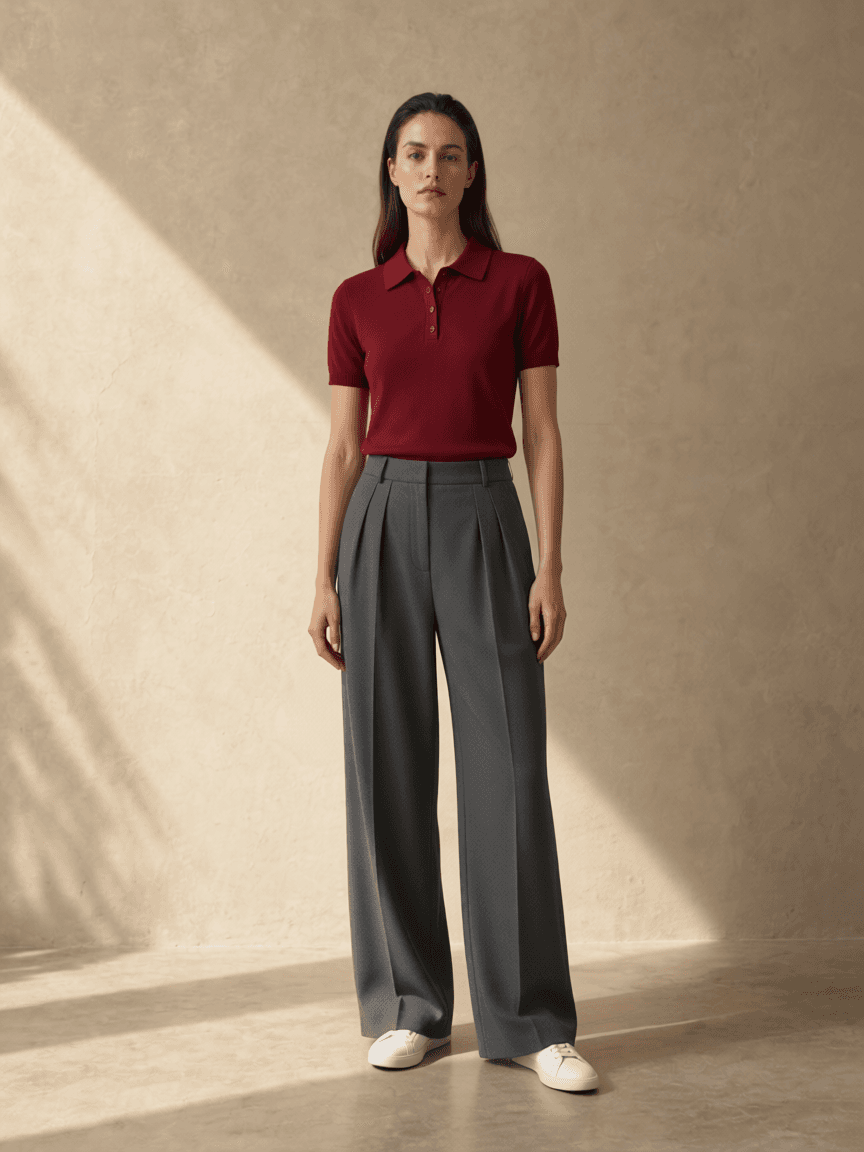
Sculptural folds, oversized layering, shiny fabrics and clothing shown only on a mannequin can leave important details ambiguous. The generator may invent an unseen sleeve, narrow a trouser leg or change a jacket's length. Compare those areas with the original before drawing a style conclusion. Our recorded example uses existing synthetic references, not Zara products; it demonstrates one output and visible changes, not verified accuracy for this retailer.
Use Zara's measurements before ordering
Zara explains that sizing can vary with style, cut and fabric. Its product pages provide a measurement guide and a Find your size option. Use those resources, the item's composition information and the return terms for your local store and order. A preview cannot tell you whether tailoring pulls at the shoulders, whether trousers are comfortable when seated or how a fabric moves. Resolve those questions with measurements and a physical fitting.
Questions about Zara outfit previews
Should I use Zara's model shot or product-only photo?
Choose the unobstructed view that shows the whole garment. A product-only image is useful when available; a clear front-facing model image can also work.
Does this replace Zara's size guide?
No. It creates a style preview, not a fit guarantee. Check Zara's measurements, materials and applicable return policy separately.
AI style preview only, not a size or fit guarantee. Read how photos are processed.