From saved product photo to outfit idea
Try on Amazon clothes on your own photo
Use Private Try-On to compare a clothing item you found on Amazon with the rest of an outfit. Save a permitted product photo or screenshot and upload it beside your own photo. You work in the browser with separate images, without connecting an Amazon account or importing a shopping cart.
Private Try-On is not affiliated with Amazon.
Open the studio with your own photo
Start with the selected variant's main image
Select the exact color or pattern you are considering before saving a reference. Confirm that the displayed image matches that selection, especially when one listing offers many variations. Amazon's image guidance calls for a white background on main product images and generally an on-model view for adult clothing. That makes a clear main image a useful starting point, but inspect the actual picture: a white background alone does not guarantee that sleeves, hems or the full outline are visible.
For shoes, choose a view that makes the shape and color readable. For a multipack, avoid uploading an image of several overlapping shirts when you intend to preview only one. A separate permitted photograph of the chosen item is less ambiguous. Keep the brand, seller, variant and listing link in your shopping notes.
Save a picture, not a specification panel
On phone, open the desired gallery image and use your browser's save action if a long press offers it. Otherwise, take a screenshot and crop away navigation, delivery text and badges without cutting off the product. On desktop, use an available image-save menu or a screenshot of the enlarged view. Avoid size-chart graphics, feature infographics and comparison panels as clothing inputs. Keep those for purchase checks. Only process photos you own or have permission to use.
Compare the item with your existing outfit
Upload a clear photo of one clothed adult to the person input. Add the garment to the appropriate studio role: top, bottoms or shoes. You can use permitted references from different stores or photographs of pieces you own. Include the relevant body area in your person photo, particularly both feet for shoes. Start with one styling question, such as whether a patterned shirt works with dark trousers, then compare the generated image with the original references.
Reject misleading or incomplete inputs
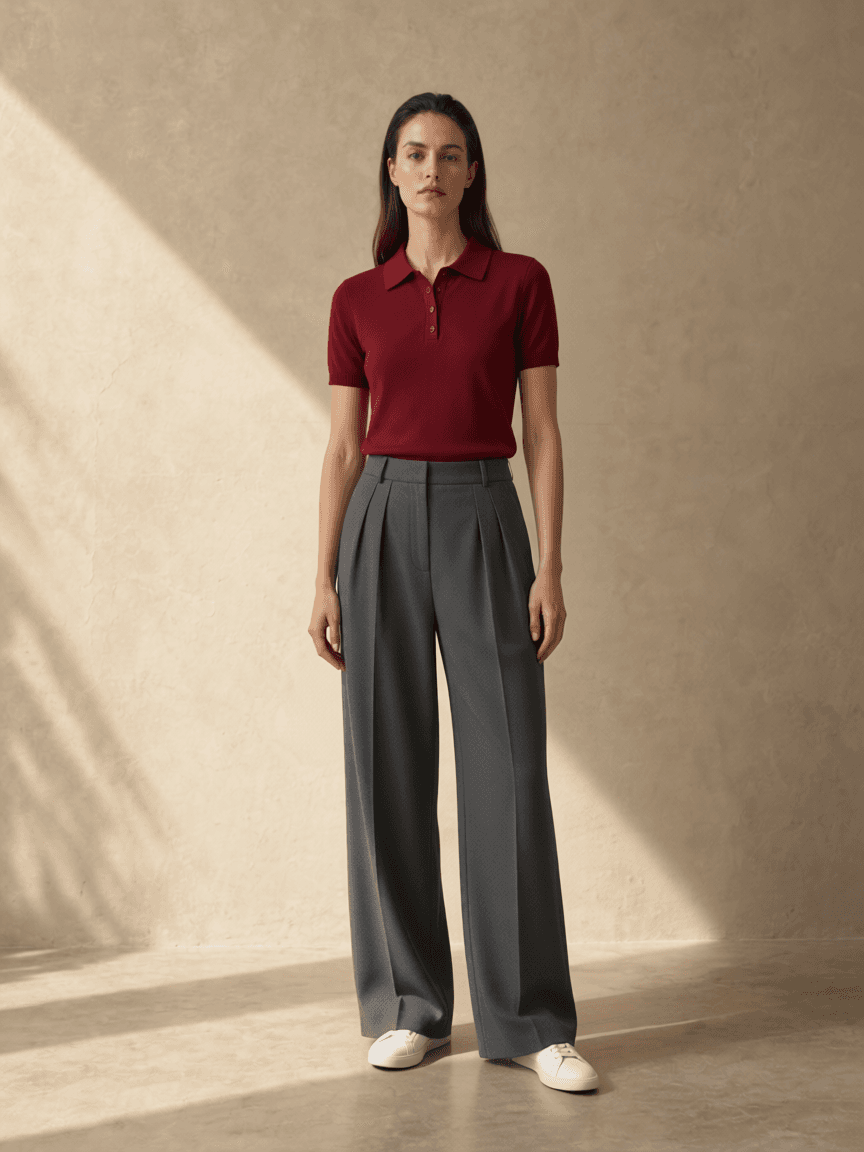
A lifestyle collage may include accessories that are not sold with the garment. Heavily layered model shots, mannequin-only views and folded items can conceal their complete shape. Fine lettering, logos, reflective trim and intricate prints may change in generation. If the result invents a new neckline or pattern, it has not confirmed the appearance of that Amazon item. The recorded example uses our own existing synthetic references, not an Amazon purchase or retailer test.
Check the actual listing before checkout
Keep size decisions with the selected listing's size chart and garment measurements. Do not transfer a size assumption between unrelated brands because both sell on Amazon. Read material details and check the return policy that applies to the item, seller and delivery location. The style preview cannot verify stock, seller claims, fabric stretch or whether the delivered item will match a picture. Save your comparison note alongside the original listing rather than treating the generated image as a product record.
Questions about Amazon outfit previews
Can I import an Amazon URL or cart?
No. Upload saved product photos or screenshots as separate clothing images. Private Try-On does not import Amazon links or carts.
Does the white-background picture guarantee an accurate preview?
No. A clear input reduces ambiguity, but generated garment details can change. Check the source images and use the listing's size chart and return policy.
AI style preview only, not a size or fit guarantee. Read how photos are processed.