AI clothes changer
Choose a piece. Preview a different outfit.
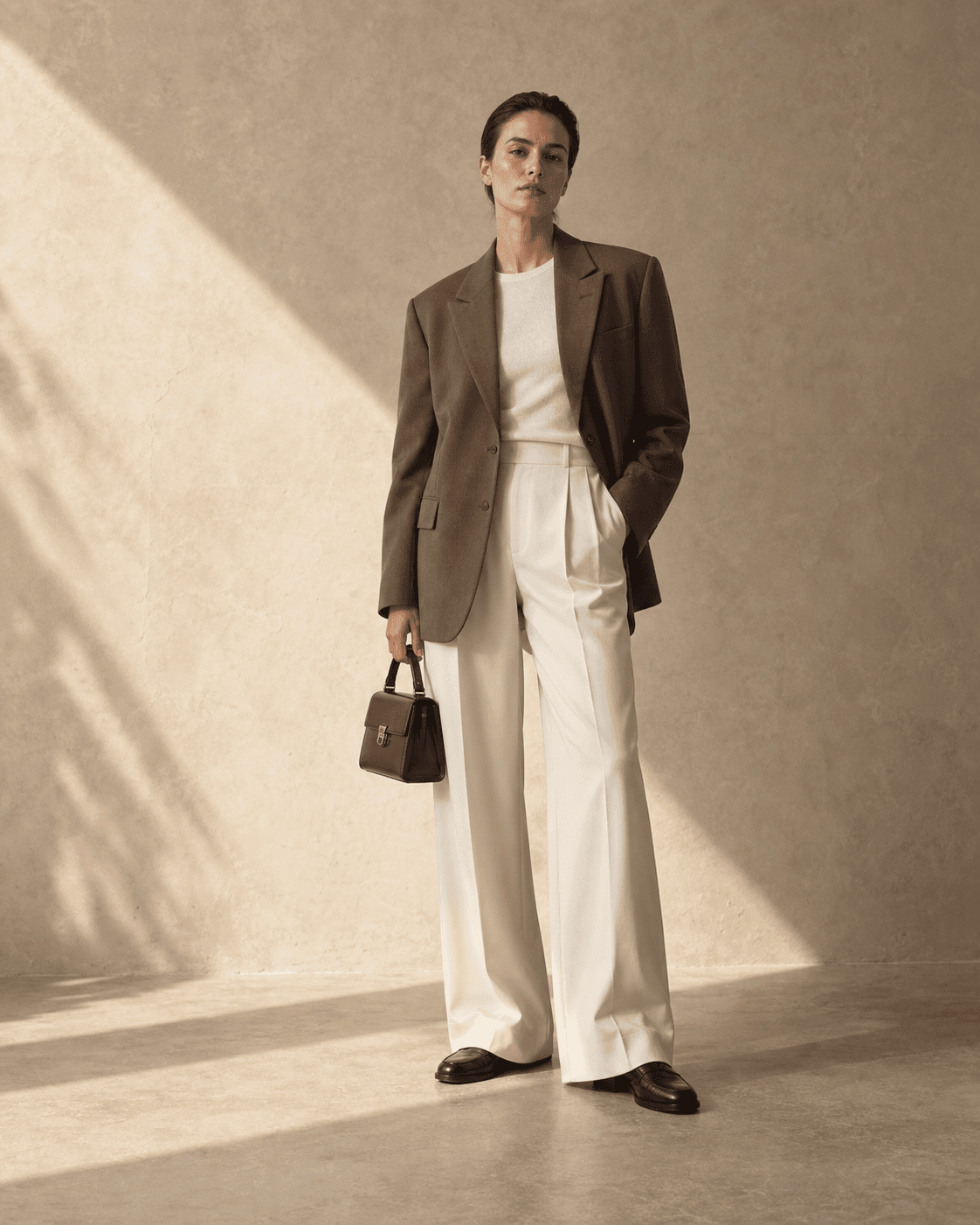 Synthetic adult model
Try one sample item without an account or card. Combine multiple items in the account studio. One attempt per IP every 24 hours; failed generations count. Shared connections share the limit. Limited daily availability.
Clothed outfit previews only. No nudity, undressing or sexual content. Content safety checks apply; requests are refused if checks cannot be completed.
What you can use it for
An AI clothes changer creates a new outfit preview from a person photo and clothing references. Use it to compare colors, silhouettes and combinations before you buy or get dressed. It is an AI outfit try-on, so seams, logos, drape and proportions can change in the generated image.
Change one piece
Try a different top with the rest of a look. Use a clean product photo so the neckline, sleeves and color are visible.
Build a complete outfit
In the account studio, add a top, trousers and shoes together to judge whether the pieces work as a combination.
Compare an idea before buying
Use product images you are allowed to use, then check the retailer’s measurements, fabric details and return policy separately.
Keep a useful comparison
Choose one question before generating: would a shorter jacket balance these trousers, or would a lighter shirt soften the look? Keep the person reference and other clothing images unchanged when comparing another option. This makes the difference easier to explain. A new generated image may still change the face, pose or surroundings, so compare the requested garment rather than assuming every other detail stayed fixed.
Inspect the changed garment
Check the neckline, sleeve length, fastening, hem and dominant color against the source image. A convincing result can invent a pocket or remove a print. If an invented detail is the reason you like the outfit, the preview has not answered your original question. Return to the actual product image and decide whether the real item still works. Keep a downloaded preview beside its source so that you can distinguish a styling idea from the merchandise.
Decide when another preview is useful
Generate again when you have a specific alternative to compare, such as a different shirt or clearer reference. Repeating an unchanged request can produce another interpretation, but it does not validate accuracy. If you need to check a cuff, embroidery or exact logo, inspect the retailer's close-up photograph instead. If comfort or movement matters, use a real fitting. The tool is most useful when your uncertainty concerns the visible relationship between clothes.
Photos that give the tool a clearer starting point
- Use a recent, well-lit photo of one clothed adult. Face the camera and keep arms slightly away from the body.
- Include your full body and feet when changing trousers or shoes. Avoid mirrors, crossed legs and cropped limbs.
- Choose one clear garment per image. A plain background and an unobstructed front view make the clothing easier to interpret.
- Start with simple pieces. Fine text, transparent fabrics, intricate prints and layered clothing can be less faithful in an AI preview.
Only use photos of yourself or an adult who gave you permission, and clothing images you have the right to use.
Where your photos go
The no-account demo sends only our synthetic adult model and your one selected sample item for generation. Its result is shown on this page and is not saved to an account gallery.
Choosing your own images here does not upload them. When you continue to your account, a compressed draft is saved on this device with a 30-minute expiry. It is deleted when restored in the studio or next checked after expiry. Generation starts only when you submit in the studio; original uploads are then held temporarily in server memory for up to 30 minutes, and new generated results are stored privately for 30 days.
Images are still sent to Agnes to create the requested result. Retention after generation may still apply, and immediate deletion is not claimed. Based on written confirmation from Agnes support, uploads sent for generation are not used for model training. We cannot link a public Agnes policy for this.
Questions before you try
How do I change clothes in a photo?
Choose one sample item above, then generate its preview on the sample model. For your own outfit, select Use my photo, add your person photo and clothing images, and continue to an account. The studio shows available generation credits before you submit.
Can I change a full outfit at once?
Yes, in the account studio. Its available item slots let you combine supported pieces in one outfit preview. The free no-account demo lets you choose one sample item: a top, trousers or shoes.
Can I try it without creating an account?
Yes. Choose one sample item: a top, trousers or shoes. We generate a preview of that item on our synthetic adult model. The limit is one attempt per IP address every 24 hours, shared by everyone on that connection. Failed generation attempts also count. A separate site-wide daily limit applies, so the demo can be temporarily unavailable. Using your own photo or combining multiple items requires an account in the studio.
Does this tool remove clothes or generate nudity?
No. Private Try-On is for clothed outfit previews only. It does not support undressing, nudity or sexual content. Requests and generated images are subject to content safety checks, and generation is refused when those checks cannot be completed. The no-account demo accepts only our approved sample model and garments.
What happens to my photos?
Selecting your own photos on this page does not upload them. Continuing to registration saves a compressed draft on this device with a 30-minute expiry; it is removed when restored in the studio or next checked after expiry. Generation in the studio sends inputs to Agnes and stores new results privately for 30 days. Agnes may apply its own retention. The no-account sample result stays on the current page and is not added to an account gallery.