From one garment to one complete look
Virtual Try-On for Multiple Items: Top, Trousers and Shoes in One Image
Many virtual try-on experiences answer a single-product question: what might this shirt look like on a person? Shopping often creates a different problem. You have chosen three separate pieces and need to see whether they make sense together.
Why most tools start with one item
A single garment creates a bounded task. The system has one product silhouette to preserve, while the rest of the outfit can remain unchanged or generic. This is useful when you already know what you will wear with the item and only want a rough on-person reference.
A complete outfit asks the model to coordinate several references at once. The neckline, sleeves, waist, trouser leg and footwear all compete for attention. The result can answer a more useful styling question, but each additional item also creates another opportunity for changed color, shape, logo or detail.
That is why “supports multiple images” should not be read as “reproduces every product exactly.” The honest goal is to see a plausible combined direction, then return to the original product pages for verification.
Single-item and whole-outfit previews compared
| Question | Single-item preview | Whole-outfit preview |
|---|---|---|
| Best for | Exploring one garment with an otherwise familiar look. | Comparing a selected top, trousers and shoes as one combination. |
| Input | Person reference plus one product image. | Person reference plus a separate image for every selected role. |
| Main value | Quick on-person context for one new item. | Color, proportion and visual-weight context across the full outfit. |
| Main limitation | The surrounding outfit may not match what you plan to wear. | More product details may be altered because the model must reconcile more references. |
| Cannot prove | Physical fit, correct size, fabric behavior, delivered quality or exact product fidelity. | |
Prepare each product image before uploading
Begin with the exact products you are considering. Use a front-facing image where the item is unobstructed, large enough to inspect and shown without several alternative colors in the same frame. Save the highest practical resolution available without enlarging a small image artificially.
- Crop away browser controls, prices, badges and unrelated text.
- Keep one product in each image instead of submitting a prebuilt collage.
- Choose a clear full-body person reference with head and feet visible.
- Avoid poses where arms, bags or furniture hide large parts of the body.
- Use images you own or have permission to process.
See the existing product-image preparation guide for a visual walkthrough. Good preparation reduces conflicting signals; it does not make the result a measurement or authentication tool.
Example: three product inputs, one generated image
This example uses synthetic product references for a burgundy top, charcoal trousers and white shoes. Each item was supplied separately. The output is shown without retouching so its usefulness and mistakes can be judged together.
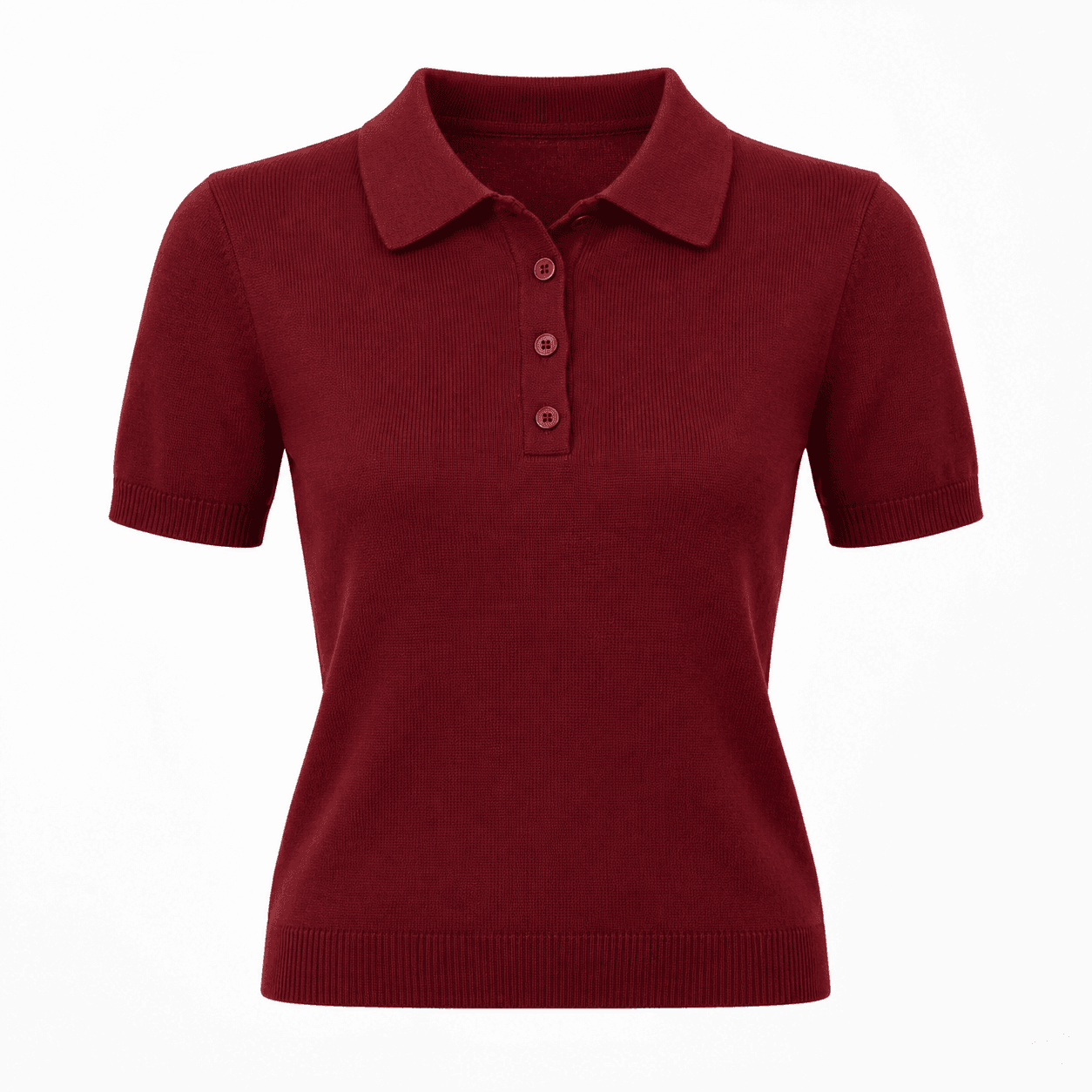
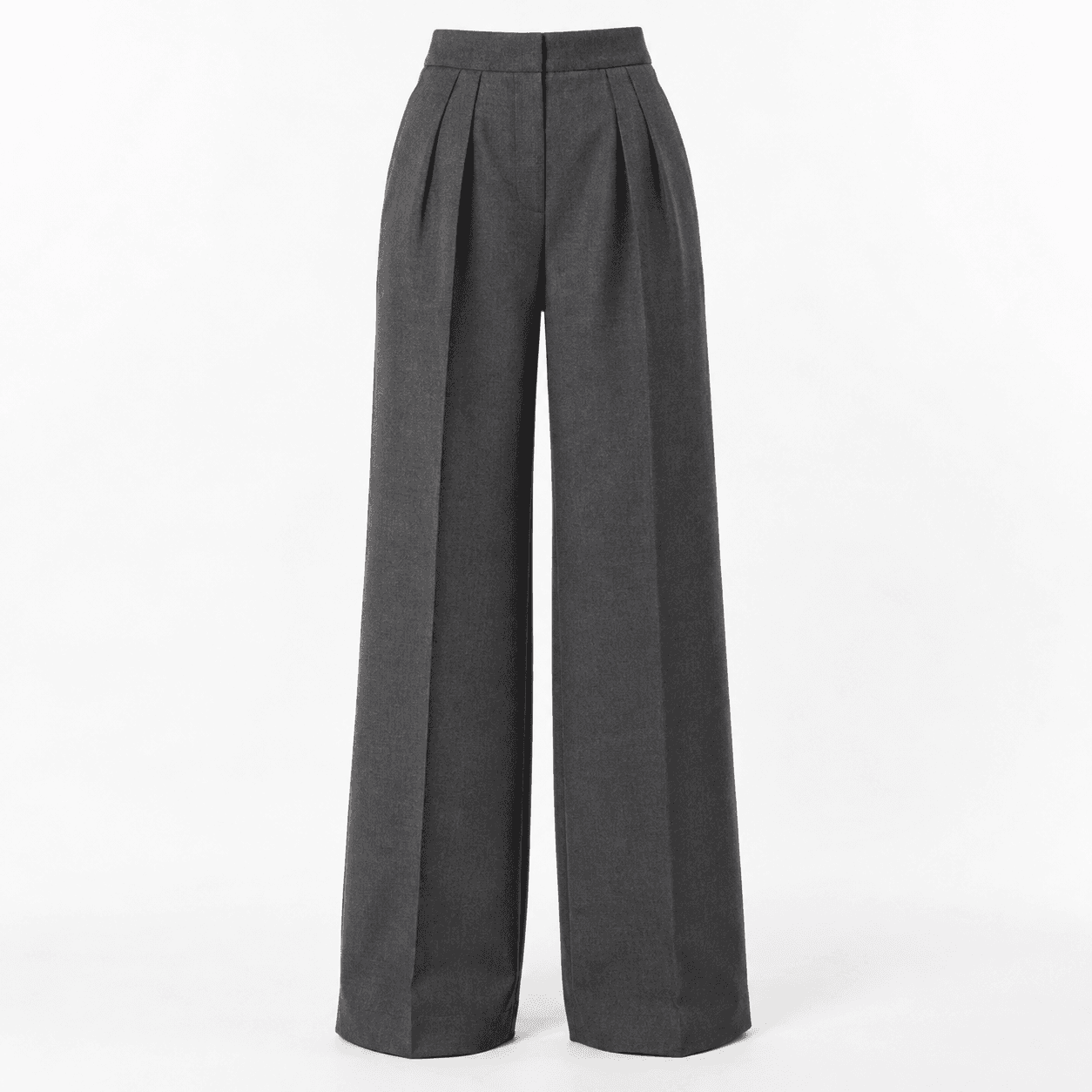
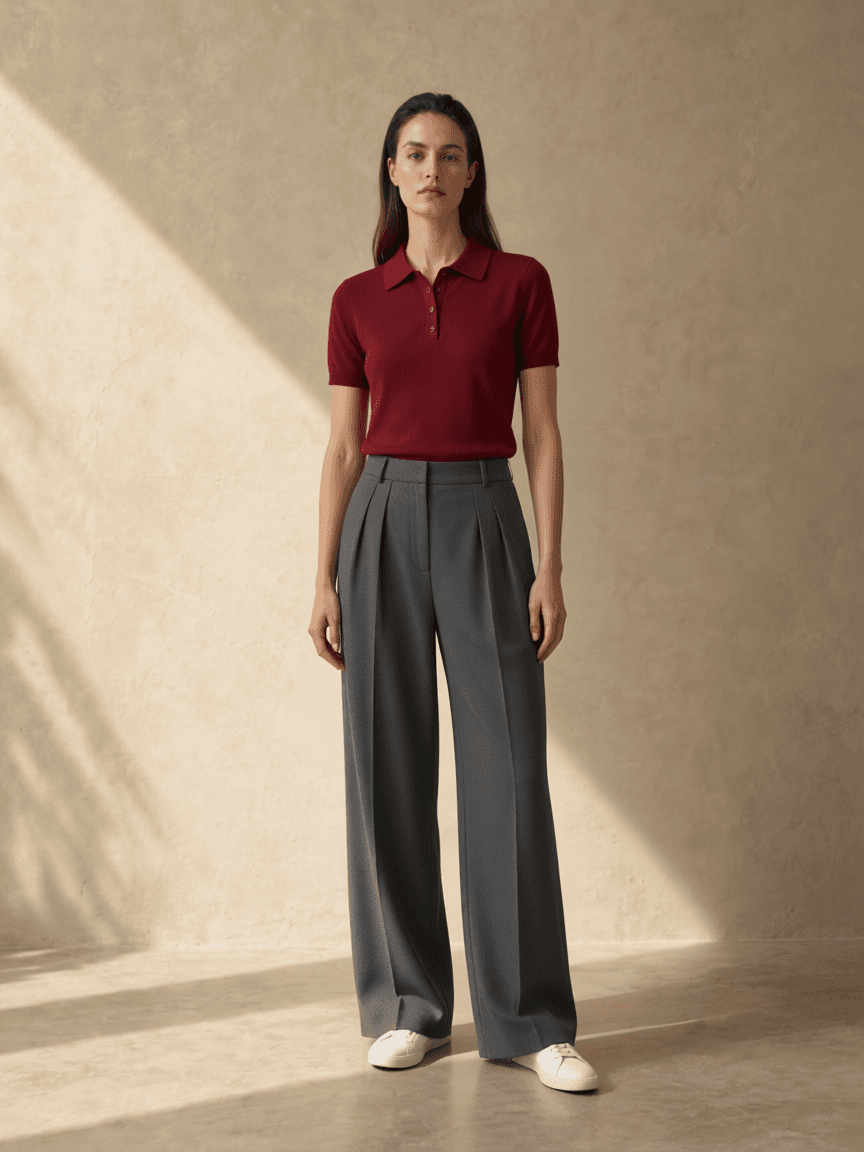
The result provides a readable whole-outfit direction. It should still be checked against the missing shoe input and every original image. A convincing composition is not evidence that the garments will fit or that the provider preserved each detail.
A practical multi-item workflow
- Decide on one occasion and one exact combination.
- Prepare the person, top, trousers and shoe images separately.
- Upload each image to its named role in the Outfit Studio.
- Generate one preview and judge the complete silhouette before focusing on details.
- Compare the neckline, color, hem, trouser shape and shoes with the sources.
- If one item changed materially, do not use the output as evidence about that item.
Read the result with clear limits
Use the preview to ask whether the outfit feels balanced, whether one piece dominates and whether the overall level of formality matches the occasion. Do not use it to choose a size or infer how fabric will stretch, crease, shine or move.
If the result changes your face or body, ignore that change. If it invents a belt, alters a print or shortens a hem, return to the source images. A whole-outfit preview is a decision aid, not a digital fitting or a promise about the delivered products.
Frequently asked questions
Can I upload a top, trousers and shoes at the same time?
Private Try-On provides separate roles for those product images and asks the image model to combine them in one style preview. Availability and output fidelity still depend on the current provider configuration.
Is multi-item virtual try-on more accurate than a single-item tool?
It answers a broader styling question, but adding items also gives the model more details to preserve. Use it to compare the complete direction and inspect every product against its source image.
What product images work best?
Use one unobstructed image per product, with the item filling most of the frame. Crop page controls, labels and unrelated people. Clean inputs reduce ambiguity but do not guarantee fidelity.
AI style preview only. Not a guarantee of fabric, fit, sizing or exact product fidelity. Published October 11, 2026.